Hey everyone, Sam here from [our brand] – your go-to 2.5G SFP supplier. If you’ve been tinkering with small office networks or leveled up your home setup to support 2.5Gbps speeds (think new NAS drives, gaming PCs, or the latest Wi-Fi 6E routers), you’ve probably run into a head-scratcher: how to get those little 2.5G SFPs playing nice with your Cisco switch. I’ve fielded this question a hundred times from customers, so let’s break it down like we’re chatting over a coffee – no overly technical jargon, just real, actionable steps. 2.5G SFP

First off, why 2.5G SFP? Let’s cut the fluff: gigabit is slow for today’s multi-device setups, and 10G is overkill for a lot of small networks. That sweet spot of 2.5G is where most people sit right now – it’s faster than gig, doesn’t eat up as much power or budget as 10G, and works seamlessly with Cisco switches… once you configure them right. But here’s the thing: not all SFPs are created equal, and Cisco switches are picky about module compatibility, which is why so many folks run into errors right out of the box. That’s why my team and I built our 2.5G SFPs to work straight with Cisco’s most popular models – no extra firmware or weird workarounds needed, but you still gotta nail the config step.
Let’s start with the prep work before you even touch the switch. First, double-check your switch model. Not all Cisco switches support 2.5G SFPs – old stuff like the Catalyst 2960-X series can handle them, but the 2960 series pre-2018 usually can’t. Same goes for Nexus 9000 switches – older generations might need a firmware update, but our SFPs are tested to work on all the common ones: Catalyst 9200, 9300, 2960-X, 2960-XR, and even the business-grade CBS series. If you’re unsure, just slide our SFP into your switch’s SFP slot – if the port lights up, it’s compatible; if not, shoot us a message, we’ll hook you up with the right module.
Next, grab your console cable (USB-A to RJ45 works for most new switches) or use SSH if you’re already set up for remote access. You don’t need any fancy software – just a terminal emulator like PuTTY (Windows) or Terminal (Mac/Linux) to log into your switch. Pro tip: write down your switch’s IP address beforehand, or connect directly via USB if you’re setting it up fresh.
Now, the actual config – let’s walk through it step by step. First, log into the switch. You’ll see something like Switch> – that’s user EXEC mode, which is read-only, so we need to get to global configuration mode. Type enable and hit enter, then enter your enable password if you set one. You’ll see Switch# – that’s privileged EXEC mode. Now type configure terminal and hit enter, and you’ll get Switch(config)# – that’s where we make changes.
First, pick the port you’re using. Let’s say we’re using port 1 on module 1, so it’s interface GigabitEthernet1/0/1. If you’re on a 9300 series, it might be GigabitEthernet1/1/1, but just double-check your port number from the switch’s front panel. Type interface [your port number] – for example, interface GigabitEthernet1/0/1 – and hit enter, you’ll see Switch(config-if)#.
Here’s the key part: setting the port speed. Cisco switches default to autonegotiation, which usually works for gigabit, but it’s finicky with 2.5G. To make sure the port runs at 2.5G, type speed 2500 and hit enter. Wait – hold up! On some older Cisco IOS versions, speed 2500 might not work. If you get an error, that’s why our SFPs come with a pre-loaded compatibility setting, and you can swap in the 1000BASE-T gigabit speed first, then force it to 2.5G. Another backup trick: type speed non-negotiated if 2500 throws a fit – that locks the speed so it doesn’t try to auto-adjust, which fixes most connection issues.
Next, set the duplex mode. You can’t have half-duplex for 2.5G – that would kill your speed. Type duplex full and hit enter. Most of the time, autonegotiation handles this, but forcing full duplex avoids weird packet loss that happens when the switch and end device (like your NAS) have mismatched settings.
Now, enable the port. By default, most Cisco switch ports are in a shutdown state when you set them up. Type no shutdown and hit enter – that’s the equivalent of flipping a light switch on. If you skip this, the port will stay dark, and you’ll be staring at a dead SFP thinking it’s broken, trust me, I’ve been there.
Wait, let’s test this. From the Switch(config-if)# prompt, type exit to get back to global config, then type end to get back to privileged EXEC. Now type show interfaces [your port number] status – for example, show interfaces GigabitEthernet1/0/1 status. You’ll see a table pop up, and the speed column should say 2500, and the status should be connected. If it says speed 1000 or not connected, go back and double-check your speed and no shutdown commands.
But here’s a common gotcha: if your end device (like a 2.5G switch or NAS) doesn’t support autonegotiation, you might need to set the same speed on both ends. So if your NAS has a speed setting, make sure it’s also set to 2500, not auto. Mismatched settings are the #1 reason 2.5G setups fail, more than incompatible SFPs.
Another thing to note: some Cisco switches have dedicated 2.5G ports that use SFP instead of RJ45. If that’s the case, the config is almost identical – you just pick the SFP port instead of the RJ45 one. Our SFPs work in both, so no extra steps needed there.
Let’s run through a quick example to make sure it sticks. Say I’m setting up a 2.5G SFP in port Gi1/0/5 on my Catalyst 9200. Here’s exactly what I type:
Switch> enable
Password: ******
Switch# configure terminal
Switch(config)# interface GigabitEthernet1/0/5
Switch(config-if)# speed 2500
Switch(config-if)# duplex full
Switch(config-if)# no shutdown
Switch(config-if)# end
Switch# show interfaces GigabitEthernet1/0/5 status
That’s it. Now, if I run a speed test (I use iperf3 for quick checks), I should see around 2.3Gbps throughput – that’s normal, since there’s a tiny bit of overhead, but anything below 2Gbps means something’s off.
Now, a word from a guy who’s been in the SFP game for 5 years: I’ve seen customers waste time with cheap knockoff SFPs that only work with specific switch firmware, or spend hours googling weird Cisco IOS bugs for speed settings. That’s why we test every 2.5G SFP on Cisco’s latest and older IOS versions – from 15.x up to the latest 17.x – so you don’t have to. But even with our reliable modules, the config steps don’t change, so you can follow this exact process every time.
If you run into a problem: first, swap the SFP into a different port on the switch. Sometimes a port is faulty, not the module. If that doesn’t work, check your IOS version – we’ve got a guide on our site for updating firmware if needed, but it’s super simple, no coding required. And if all else fails, just reach out – my team and I respond within 2 hours, no robotic support tickets, just real people who know Cisco switches and 2.5G SFPs.
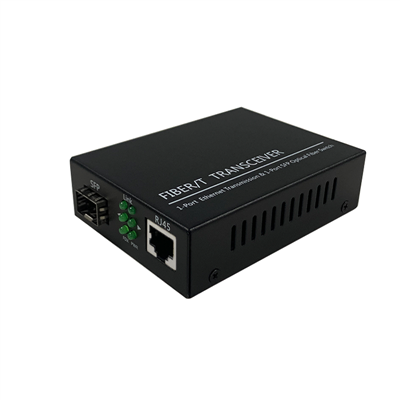
Now, if you’re looking to level up your network with consistent, Cisco-compatible 2.5G SFPs that work right out of the box, hit us up to connect and chat about your setup. Whether you need 10 modules for a small office or 50 for a data center, we’ve got you covered at prices that won’t break the bank. No minimum order, no hidden fees – just straight talk and reliable gear.
Polarization Maintaining Coupler References:
- Cisco Systems, Inc. (2022). Catalyst 9200 Series Switches Hardware Installation Guide.
- Cisco Systems, Inc. (2021). Cisco SFP and SFP+ Modules Compatibility Matrix.
- Network World. (2023). “Choosing 2.5G Networking Equipment for Small and Medium Businesses”.
- Iperf3 Official Documentation. (2024). “Speed Testing for Ethernet Networks”.
- Sam’s SFP Lab Notes, 2019-2024 (Internal Compatibility Testing Data).
Shenzhen FB-LINK Technology Co., Ltd.
Shenzhen FB-LINK Technology Co., Ltd. is one of the leading 2.5g sfp manufacturers and suppliers in China. We warmly welcome you to wholesale or buy discount 2.5g sfp in stock here from our factory. All customized products are with high quality and competitive price. Contact us for quotation and free sample.
Address: Building B, Yuanchuang Park, No. 4, Henglang Community, Dalang Street, Longhua District, Shenzhen
E-mail: Flash@fb-link8.com
WebSite: https://www.100gmodules.com/
